A WordPress website audit is one of the most effective ways to improve your site’s performance and security. With Google’s ranking algorithms more sophisticated than ever and user expectations for speed and mobile experience at an all-time high, regular website audits are essential in 2026.
At Solve, we specialise in WordPress website maintenance and audits, managing high-performance sites for clients across the UK and beyond. In this guide, we walk you through our tried-and-tested 12-step WordPress audit checklist, covering everything from backups and plugin updates to SEO health and mobile responsiveness. Let’s get your site performing at its best.
Table of Contents
What is a WordPress Website Audit?
A WordPress website audit evaluates a site’s performance, load time, security, usability, structure, plugins, themes, analytics, and compliance. It helps maintain a high-performing, secure, and user-friendly website that leads to better search engine rankings and improved user experience.
Why Your Business Needs a WordPress Website Audit
There are multiple benefits to be gained from carrying out a website audit, including:
Enhanced Performance and Speed
A website audit can supercharge your website’s performance and speed. It can help identify slow-loading pages and large image files that need to be compressed, it can improve caching, reduce the number of HTTP requests, ensure lightweight yet functional themes, eliminate unnecessary redirects and optimise plugins.
Improved Website Security
Website audits improve site security by identifying vulnerabilities and making changes to protect the site from potential threats. Key ways to enhance security include updating WordPress themes and plugins, installing security plugins, implementing backup strategies, ensuring the site has an SLL certificate and setting up alert systems.

Boosted SEO Rankings
Website audits can boost SEO rankings by improving site speed and mobile-friendliness, providing relevant content updates, fixing broken links, and optimising media, analytics, and tracking. The combination of these small changes can improve your site’s SEO health, making it more likely to rank higher in search engine results.
Improved User Experience
A WordPress site audit can improve user experience by improving page load speed and mobile responsiveness, incorporating custom 404 pages with helpful links and supporting accessibility and navigation. Improved user experience leads to higher satisfaction and an increased likelihood of user retention and conversion.
Improved Compatibility
Website audits improve compatibility by ensuring that a website functions correctly across different browsers, devices, and platforms. It also ensures that your site maintains compatibility with themes, plugins, and third-party integrations.
Cost Savings
Regular website audits and site health checks can prevent larger, more costly issues from arising in the future. In fact, when a website’s performance is addressed, revenue can dramatically increase. Improving a website load speed from 5 to 1 second can triple conversions!
AI Search Visibility
In 2026, it is not just Google’s traditional results you need to think about. AI-powered search tools like Google’s AI Overviews and Bing Copilot are pulling answers directly from well-structured, authoritative websites. A WordPress website audit helps you check that your content is clearly organised, properly marked up with schema, and built in a way that AI systems can understand and cite. Sites that tick these boxes are far more likely to appear in AI-generated summaries, which is fast becoming its own source of organic traffic.

Your WordPress Website Audit Checklist
Here is an easy, step-by-step guide to carry out a WordPress website audit.
1. Create a Back-Up of Your Website
Back up your website regularly. Popular and well-maintained options in 2026 include UpdraftPlus and All-in-One WP Migration, both of which sync with cloud storage services like Google Drive and Dropbox. One thing worth knowing: backup plugins stored on the same server as your site offer very little protection if that server goes down entirely.
At Solve, we back up sites on our super secure, dedicated server. This backs up your site every hour for the first 24 hours, then every 24 hours following. Contact us to find out more about securing daily off-site backups.
2. Update Your WordPress Software
Update your WordPress software regularly. You can do this by clicking ‘Dashboard’ in the top left corner, followed by the ‘Updates’ drop-down. Here you will be able to see which version of WordPress you currently have and whether there are any updates available.
2.5 Check Your PHP Version
This one is easy to miss, but it matters a lot. PHP is the programming language that powers WordPress, and running an outdated version is one of the most common security vulnerabilities we see. PHP 8.1 reached end-of-life at the end of 2025, meaning it no longer receives security patches. In 2026, PHP 8.2 or 8.3 is the recommended baseline for most WordPress sites.
You can check your PHP version by going to Tools > Site Health in your WordPress dashboard. If you are running anything below 8.2, speak to your hosting provider or get in touch with our web development team to get it updated safely.
3. Check Your Site Health Status
Regularly check your site health status. At Solve, we offer monthly site health and WordPress maintenance check packages for clients. You can check your site health by clicking ‘Tools’ in the left menu bar in WordPress, followed by the submenu item titled ‘Site Health.’ Here you will see a site health status reading as well as a list of recommended improvements. An expert web developer can support you action these changes.
4. Update Plugins & Themes
Update your plugins and themes to ensure compatibility across your site. You can update plugins by navigating to ‘Plugins’ on the left menu bar on WordPress. Click on this, and you will then see a list of your installed plugins, whether they are active or inactive and if there are any updates available. It’s also possible to enable or disable plugin auto-updates on this dashboard.
To update themes, navigate to the ‘Appearance’ menu item on the left sidebar. You can then click on the drop-down ‘themes’ and see your installed themes appear on the dashboard. If a theme has an available update, you will see a message above the theme that says ‘update now.’
We also recommend removing outdated, inactive, or unnecessary plugins. However, we suggest talking to a web developer before making changes, as plugins and themes can often clash or disrupt a site’s performance if they are not updated or maintained correctly. Some WordPress plugins also have security risks. If you are unsure which plugins and themes are safe to install, talk to one of our web developers today.
5. Check Your User Accounts
Check your user accounts for any recent unauthorised access or changes to your website. You can do this by navigating to the ‘Users’ menu on the left sidebar, followed by the submenu item ‘All Users.’ Here you will find a list of registered users. It is possible to set different user roles and capabilities which include administrators, editors, authors, contributors and subscribers.
If you discover any unauthorised users or activity, you will need to contact a remove the user, reassign content, change passwords, review user roles, set up two-factor authentication, update plugins and themes to prevent breaches and back up your site. An experienced web developer can support you with these changes.
6. Check Your Site Performance
You can easily check your site’s performance using tools such as GTMetrix. This tool gives you a breakdown which includes a GTMetrix grade score, performance rating, loading speed and more. Checking your website performance allows you to gain insight into how users are experiencing your site and whether there are aspects that can be improved.

Did you know that improving your site speed can dramatically improve your conversion rate? For example, one company increased conversions by 7% simply by reducing page laid time by 0.85 seconds. At Solve, we guarantee faster speed than your current hosting.
Core Web Vitals: Google’s Key Performance Tests
Beyond overall speed, Google measures three specific signals known as Core Web Vitals. These directly affect where you rank in search results, so they deserve their own attention during any WordPress website audit.
Largest Contentful Paint (LCP) measures how quickly the main content of a page loads. Google wants this to be under 2.5 seconds. First Input Delay (FID) and its newer replacement, Interaction to Next Paint (INP), measure how quickly your site responds when someone clicks or taps. Cumulative Layout Shift (CLS) measures visual stability. If elements on your page jump around as it loads, that is a poor CLS score.
You can check all three in Google PageSpeed Insights for free. If your scores are in the red, the most common culprits on WordPress sites are unoptimised images, poorly configured caching, and render-blocking scripts from plugins. Our WordPress maintenance team can identify and fix these for you.
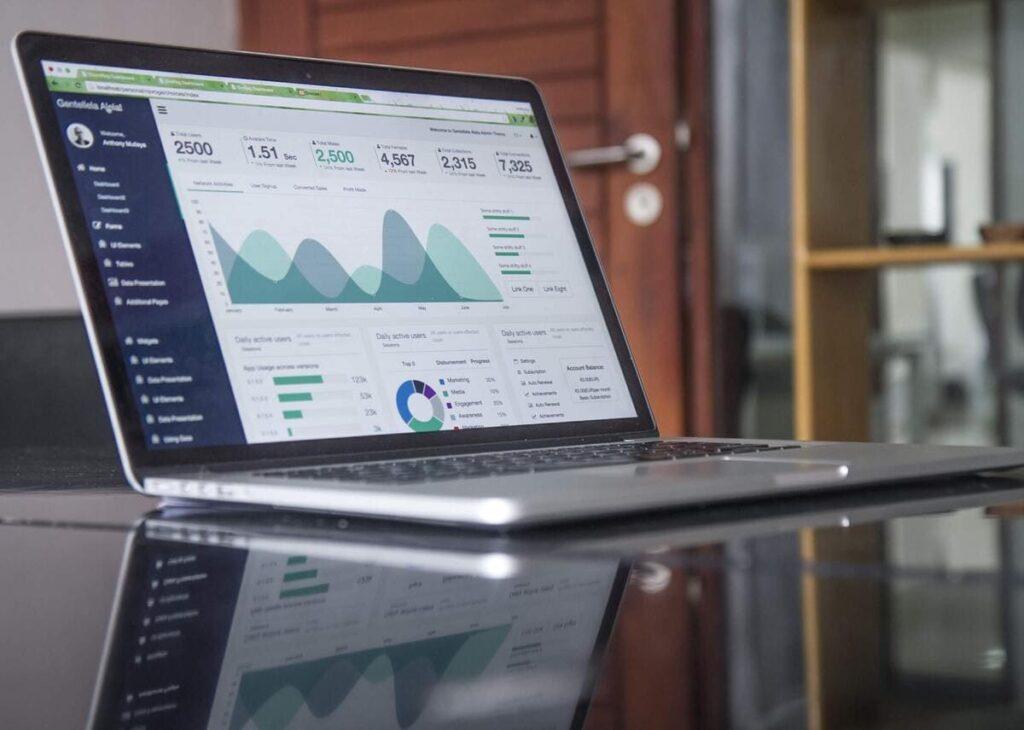
7. Check Your Websites Analytics
There are various methods for checking your website’s analytics. If you are looking for a quick, simple solution using built-in WordPress statistic tools such as the JetPack plugin can be a good start to gain basic insights for a small website. However, if you are looking to ramp up your business growth, you will need to create a Google Analytics account.
Once you have set this up, you can install and connect Google Analytics with powerful analytic plugins such as Site Kit by Google and Monster Insights. These tools will enable you to measure your site’s effectiveness and make informed decisions about potential site improvements.
You may also want to set up Google Search Console for deeper insights. To do this, you will need to verify your site and submit an XML sitemap for better indexing. Our expert web development team can support you with these steps.
8. Test Your Active Forms
Test your active forms to check that submissions are being received. To do this, locate all active forms on your website. These could be contact forms, registration forms, sign-up forms, or any other forms created using plugins such as Contact Form 7, WPForms, or Flamingo. Generally, you can find these plugins listed on the menu bar on the left side of your WordPress dashboard.
Once you have located your forms and where submissions are stored, submit test entries on each form on your website. You may want to use different browsers to test compatibility.
Check that email notifications are being sent to the correct email addresses when a form is submitted and that subscribers are being added to third-party mailing lists such as Mailchimp. Also, check that any redirect or thank you pages after form submission are working. If you find any errors, you can read your plugin’s help guide or get support from our web dev wizards!
9. Check Your Site Functionality
Make sure your website is running smoothly by checking its functionality. You can do this by visiting your website and checking the following:
- Are text and images properly formatted and free from errors?
- Are navigation menus, submenus and buttons working?
- If your website has a user login feature, is it working? Does the reset password function work?
- If you have an e-commerce site, are cart, checkout and payment gateways working?
- Does your website work on different browsers – Chrome, Firefox, Safari and Edge?
- Is your website accessible? Do any website accessibility features need to be added?
10. Check for Broken Links and Redirects
Broken links are bad for users and bad for SEO. When someone lands on a page that does not exist, they are likely to leave your site immediately. Google also picks up on excessive 404 errors and it can affect how your site is crawled and ranked.
A quick way to check for broken links is to use Screaming Frog (free for up to 500 URLs) or the Redirection plugin for WordPress, which automatically catches any internal links that break when you change a page slug. During your audit, pay particular attention to links in your navigation menus, footer, and any internal links within blog posts, as these tend to be missed.
If you have recently migrated your site or changed your URL structure, it is also worth checking that old URLs are redirecting cleanly to the correct new pages, rather than resulting in redirect chains or loops. Our web development team can carry out a full link and redirect audit as part of our maintenance packages.
11. Test Mobile Responsiveness
Visit your website on a mobile device to check mobile responsiveness. Are all menu items and buttons easily accessible? Are images and videos in the right place? Are there any interactive elements that are confusing and need to be hidden on mobile?
In 2023, it was found that 313% more website visits were made on mobile than desktop, and it is predicted that there will be 62.53 million mobile internet users in the UK by 2029. As you can see, mobile responsiveness is a MUST when it comes to a website audit.
12. Review Your Site SEO
A proper SEO review during your WordPress website audit should cover several areas. Here is what to look at.
XML Sitemap and Google Search Console
Make sure your XML sitemap is up to date and submitted to Google Search Console. This tells Google which pages you want indexed. Inside Search Console, check the Coverage report for any indexing errors or excluded pages and look at the Performance report to spot pages with lots of impressions but few clicks. Those are pages where improving your title tag or meta description could quickly drive more traffic.
On-Page SEO: Titles, Headings and Meta Descriptions
Every page on your site should have a clear primary keyword, and that keyword should appear in the page title, H1 heading and meta description. Plugins like RankMath or Yoast SEO make it easy to review and update these across your site. Check that you only have one H1 per page and that your heading structure follows a logical order from H1 down to H2 and H3.
Schema Markup
Schema markup is code that helps search engines understand your content at a deeper level, and in 2026 it also helps AI-powered search tools like Google’s AI Overviews surface your content accurately. For most business websites, you will want LocalBusiness schema as a minimum. If you have a blog, Article schema helps too. Both RankMath and Yoast include built-in schema tools that do not require any coding knowledge.
Internal Linking
Check that your key pages are linked to from other relevant pages on your site. Orphan pages, those with no internal links pointing to them, are harder for Google to find and rank. A good internal linking structure also keeps visitors on your site for longer, which sends positive signals to search engines.
For a deeper level of SEO analysis, including backlink auditing and competitor gap analysis, take a look at our SEO packages.
Is Your WordPress Website Accessible?
Website accessibility is no longer optional. In the UK, the Equality Act 2010 means that businesses have a legal obligation to ensure their websites are accessible to people with disabilities, and in 2026 enforcement is increasing. Beyond the legal side, an accessible site simply works better for everyone.
During your WordPress website audit, run your site through the free WAVE Evaluation Tool to check for common website accessibility errors. Look out for images without alt text, poor colour contrast, missing form labels and heading structure that jumps around without logic. Our web design team can carry out a full accessibility review and implement improvements to bring your site in line with WCAG 2.2 guidelines.

Best Practices for WordPress Website & Plugin Audits
So, there you have it – twelve easy ways to audit your WordPress website. We also recommend the following best practices to keep your website running smoothly.
Schedule Regular Audits: Timing and Frequency
At Solve, we carry out monthly site health and maintenance checks for our clients. Think of it as a service for your website the same way you’d service your car: small, regular check-ins prevent the kind of expensive breakdowns that only happen at the worst possible time.
As a general guide, run the 12-step wordpress website audit above on a monthly basis. Every quarter, go deeper: check for outdated content, review your analytics for trends you might have missed and do a full broken link crawl. If your site handles sensitive data, processes payments or sees high traffic volumes, monthly security checks are a must.
Not sure where to start? Our WordPress maintenance packages take care of all of this for you, so you can focus on running your business.
Utilise Professional Audit Tools and Services
There are many free tools available to use to test website speed, performance, accessibility, analytics and more. Tools that you may want to check out include:
- Google Page Speed Insights – gives page speed and user experience insights.
- Screaming Frog – Find broken links, find duplicate content, schedule audits and more!
- Wave Evaluation Tool – An extension that outlines accessibility errors.
- Google Search Console – free, and arguably the most important tool for understanding how Google actually sees your site. Check it monthly for indexing errors, manual actions and keyword performance.
- Ahrefs Webmaster Tools – the free version gives you a solid snapshot of your backlink profile and flags broken links and missing meta data across your site.
Keep Up with WordPress Updates and Trends
Stay up to date with WordPress updates and trends to keep your website secure, efficient, and ahead of the curve. You may want to enable automatic updates for minor releases and regularly check for major updates to WordPress, plugins and themes. Stay in the loop through community forums, blogs and webinars.
Next Steps: Customised WordPress Website Audit Services
Regular WordPress website audits can take your website to a whole new level. At Solve, we take pride in seeing our clients skyrocket their success. We design and build websites with solid foundations and supercharge their growth with our SEO packages.
We take care of thousands of leading websites worldwide, and our top-performing clients use our comprehensive plugin and audit management services. If your website is over three years old, in poor health, or requires many plugins to function, you may also benefit from a new, high-performance website. Contact our expert team to find out more.

Discover our WordPress Maintenance & Website Audit Services 2026
Speak to Perry – He’s ready to help propel your online business
WordPress Website Audit FAQs
How often should I carry out a WordPress website audit?
For most business websites, a basic audit every month and a deeper review every quarter is the right balance. If your site processes payments or handles personal data, monthly security checks are essential.
How to audit a WordPress website?
Start with a backup, then work through the key areas systematically: update your WordPress core, PHP version, plugins and themes, check your site health status inside your WordPress dashboard, test your site speed using a tool like GTMetrix or Google PageSpeed Insights, review your Core Web Vitals scores, test all forms and key functionality, check mobile responsiveness, look for broken links, and review your on-page SEO. Our full 12-step checklist above walks you through each of these in detail. If you want someone to take it off your plate entirely, our WordPress maintenance team can carry out a professional audit for you.
How long does a WordPress website audit take?
A basic audit using the checklist above can take anywhere from one to three hours depending on the size of your site. A full professional audit, including SEO analysis, security scanning and performance testing, typically takes a full day or more.
What is the difference between a WordPress audit and a WordPress maintenance plan?
An audit is a point-in-time assessment that identifies issues. A maintenance plan is ongoing and keeps your site updated, backed up and monitored between audits. Ideally you want both. Our WordPress maintenance packages include regular health checks as standard.
Do I need a developer to carry out a website audit?
You can carry out the basic checks yourself using the steps in this guide. However, for a deeper technical audit, including PHP configuration, database health, server-level security and performance optimisation, working with an experienced web developer will get you much further and faster.
Can ChatGPT do an SEO audit?
ChatGPT can help you think through SEO issues and review your content, but it cannot crawl your website, access your Google Search Console data or check your technical setup. For a proper SEO audit you need dedicated tools like Google Search Console, Screaming Frog or Ahrefs, combined with the expertise to act on what they surface. Think of ChatGPT as a helpful sounding board rather than an audit tool.
Is a WordPress check different from a site audit?
A WordPress site health check is a quick built-in diagnostic that flags obvious technical issues, like outdated PHP, insecure settings or performance problems, within your WordPress dashboard. A full site audit goes much further. It covers SEO performance, Core Web Vitals, broken links, accessibility, user experience, analytics and security in depth. The site health check is a good starting point, but it is not a substitute for a thorough audit. Think of it as a warning light on your dashboard rather than a full service.
Is there an audit log in WordPress?
WordPress does not include a built-in audit log by default, which means changes made by users, like plugin installations, content edits or login attempts, are not tracked unless you add a plugin to do it. WP Activity Log is the most widely used option and records a detailed trail of everything happening on your site. This is particularly useful if you have multiple users with access to your WordPress dashboard, or if you want to spot any suspicious activity quickly. For sites handling sensitive data or running e-commerce, an activity log is well worth having in place.